Pastiche — Documentation · macOS 13+ · Free
Documentation
Everything here matches Pastiche 1.1.1, and every command, path and shortcut is click-to-copy.
From download to first paste
Pastiche ships as a disk image, served from this site. There is no installer, no account and no license key: drag it in and press the hotkey.
Step 1
Download the disk image
Get
Pastiche-1.1.1.dmg(2.5 MB) with the button above. Updates arrive as a.zipof the same build, which the updater fetches for you.Step 2
Drag Pastiche into Applications
Open the disk image and drag Pastiche onto the Applications folder inside the window. Then eject the disk image.
Step 3
Launch it and press the hotkey
It lives in the menu bar. The first launch opens a Welcome window, with a Dock icon while it's open, that shows permission status. Press and the shelf slides up.
First launch
Opening it the first time
Pastiche is ad-hoc signed, not notarized. The first time you open it, macOS blocks it because it isn't notarized. Open System Settings › Privacy & Security, scroll down to Security, and click Open Anyway next to the note about Pastiche, then confirm with your password or Touch ID.
On macOS 13 and 14, Control-clicking the app and choosing Open also works. You do this once per installed version.
Permission
Accessibility
Pastiche pastes by pressing for you in the app you came from, and macOS only lets apps you trust send keystrokes. The Welcome window's Grant Access button asks for it; approve Pastiche in System Settings › Privacy & Security › Accessibility.
Skip it and everything still works: Return copies the card and you press yourself.
Declined by accident? Relaunch Pastiche, or press Grant Access on the Welcome tab. Because builds are ad-hoc signed, macOS can reset the grant after an update; Pastiche asks again. If System Settings already shows Pastiche as allowed but pasting doesn't work, remove it from the list with the − button and add it again.
Intel Macs
Apple silicon today
Today's download is Apple silicon only. A universal build is a release away, not a rewrite.
The shelf, end to end
Copy the way you always have. Pastiche records every clipping in the background and hands it back when you open the shelf.
2.0
The main window
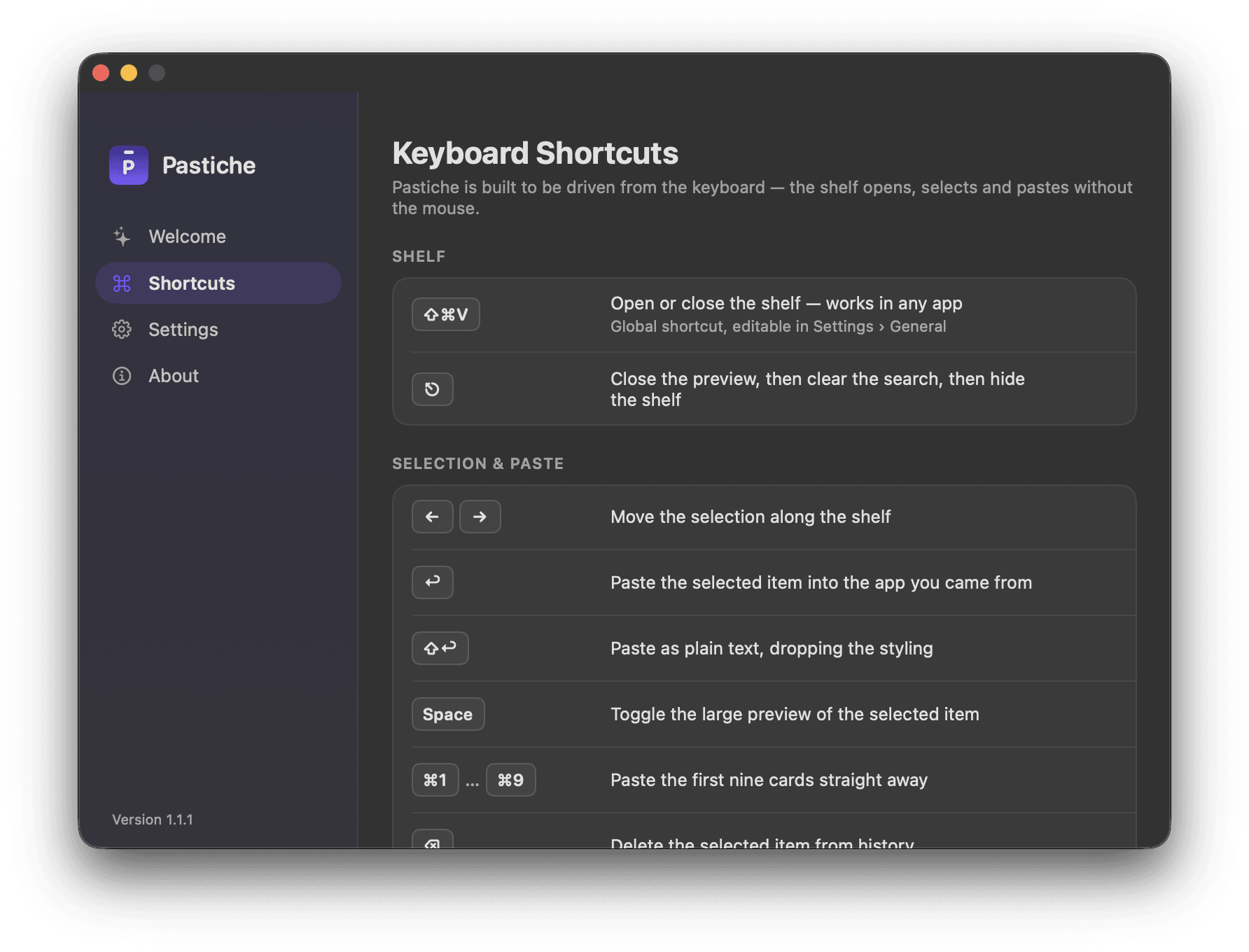
Right-click (or Control-click) the menu-bar icon and choose Open Pastiche to open the main window. It has a tab each for Welcome, Shortcuts, Settings and About. While it's open, Pastiche shows a Dock icon and a standard menu bar.
Welcome shows permission status and a Grant Access button, Shortcuts lists every key, Settings holds the preferences in § 04, and About carries the version.
2.1
Open the shelf
Press from any app, or click the menu-bar icon. The right-click menu has Open Shelf too. The shelf appears on whichever display the pointer is on, and closes with the same hotkey, , a click outside it, or switching apps.
2.2
Pick and paste
Move with , then to paste into the app you came from. pastes plain text, and – paste the first nine without moving the selection.
Right-click any card for Paste, Paste as Plain Text, Copy, Add to Pinboard and Delete.
2.3
Pinboards
The tabs across the top of the shelf are Clipboard plus your pinboards: named boards in eight colors for the clippings you reuse. Press + to create one, then drag a card onto a tab, or use Add to Pinboard.
Adding a clipping to a board saves a copy, so your history is untouched, and boards never count toward the history cap. Right-click a tab and choose Rename… to change its name or color, or Delete Pinboard… to remove it; deleting a board removes only the copies saved on it.
2.4
Previews
Press to preview the selected card: full text, images fitted to the panel, openable links, file lists and color swatches, with the source app, the time and the size along the bottom. or closes it again.
2.5
Drag and drop
Drag any card out of the shelf and into another app: a document, a Finder window, a message. Images and files drag out as real files; text drags as plain text.
2.6
Pause recording
Right-click (or Control-click) the menu-bar icon and choose Pause Clipboard History. It stops recording until you turn it back on or quit Pastiche. Pause does not survive a relaunch.
2.7
What Pastiche keeps
Each kind of clipping gets its own card, a badge for the app it came from, and a relative time. Styled text keeps its RTF and HTML; images are stored as PNGs with a thumbnail alongside.
- Text
- Links
- Images
- Files
- Colors
2.8 — Keyboard
Nine commands
Everything below works while the shelf is open, except the shortcut that opens it. Click any combination to copy it.
Shelf
| Open or close the shelf, on whichever display the pointer is on. | |
| Close the preview, then clear the search, then hide the shelf. |
Selection & Paste
| Move along the rail. ↑ ↓ work too, even while you type a search. | |
| Paste into the app you came from. ⇧ ↩ pastes plain text. | |
| Paste as plain text, dropping the styling. | |
| Preview the selected clipping. | |
| Paste one of the first nine, without moving the selection. | |
| Delete the selected clipping from history. |
Search
| Focus the search field. Or just start typing; the search field takes over. |
Also
- Also move the selection, and keep working while you type in search.
- Pastes, like Return.
- Deletes, like Delete.
- Is disabled while the search field is open.
Two filters and fuzzy text
Start typing with the shelf open and the search field takes over. Words fuzzy-match the text, the address, the hex, the file name and the app a clipping came from, ranked best-first. With no search words, results are newest first.
| Filter | Matches | Also written |
|---|---|---|
| Text and rich-text clippings. | kind:text | |
| Images. | kind:image | |
| Links. | kind:link | |
| Files. | kind:file | |
| Colors. | kind:color | |
app:<name or bundle ID> | Clippings copied while that app was frontmost. | source: |
type: is forgiving about the value: img, url, hex, png, rtf, screenshot all work, and type:rich narrows to rich-text clippings.
3.1 — Examples
Filters stack with each other and with words
- Every image, newest first.
- Links whose URL mentions “release”.
- Everything copied while Safari was frontmost.
- Still finds “world”.
Press to jump back to the field, and to clear it.
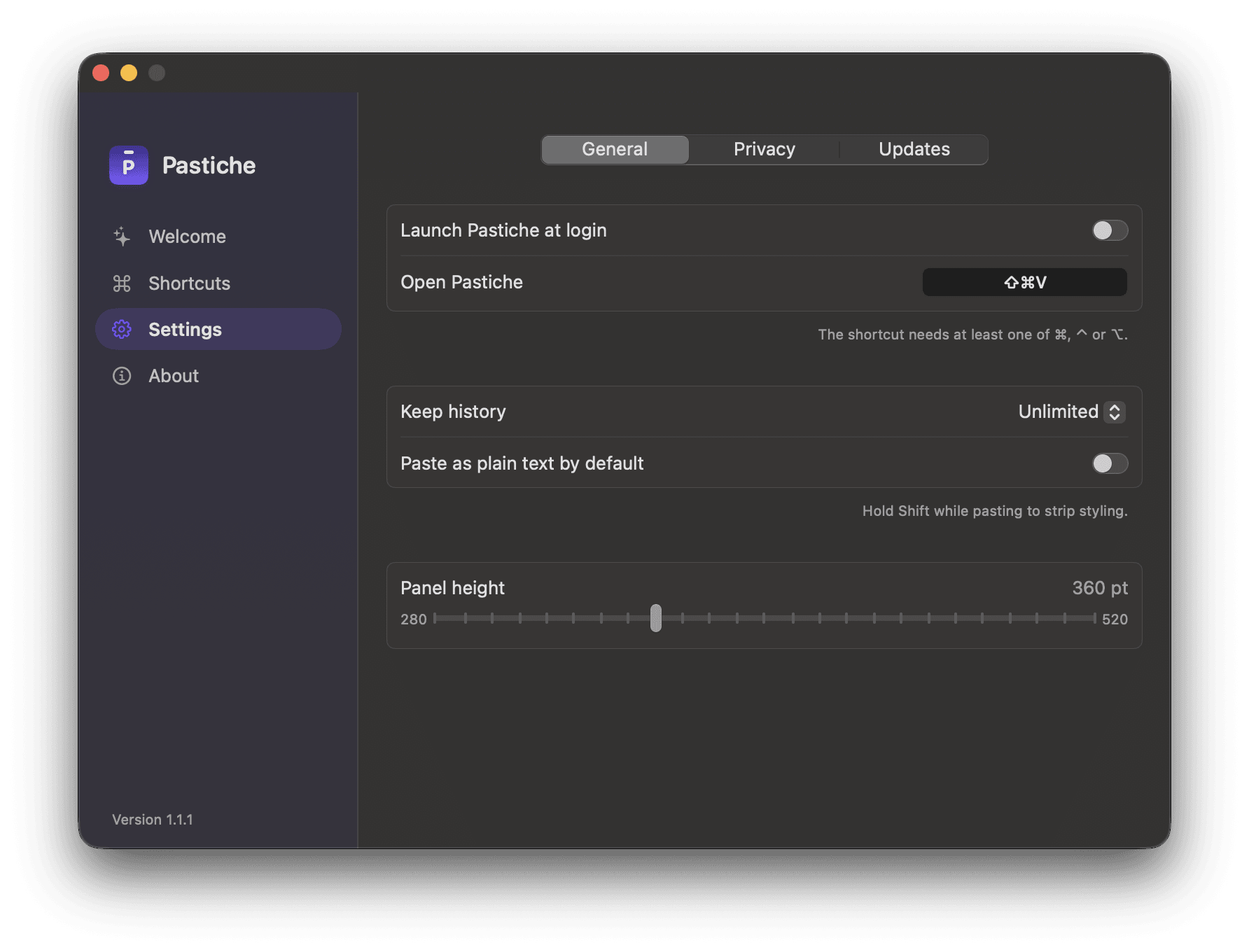
Three panes, in the main window's Settings tab
Every preference is stored on this Mac, in the app's standard preferences file.
4.1
General
- Launch Pastiche at login, backed by
SMAppService. The toggle checks the real system state and reverts if registration fails. - Global shortcut: record a new combination for the shelf. It needs at least one of ; a combination the system rejects reverts to the previous one.
- Keep history: Unlimited (the default), or 100, 500, 1,000 or 5,000 items. The count is never capped unless you choose to. Lowering the cap prunes straight away.
- Paste as plain text by default swaps the meaning of and .
- Panel height: 280 to 520 pt in 10 pt steps (default 360).
4.2
Privacy
- Ignore concealed and transient clipboard content, on by default. Password managers mark their copies as concealed, and Pastiche never records them.
- Ignored Apps: anything copied while one of these apps is frontmost is skipped.
- Clear History… removes every item from the Clipboard tab and overwrites the cleared text on disk. Pinboards are left untouched.
4.3
Updates
Automatically check for updates reflects Sparkle's real setting, and Check Now runs a check on demand. The current version is listed underneath.
4.4
About
About is its own tab in the main window: the version, and the one promise the app makes: everything you copy stays on this Mac.
4.5
Where your data lives
Clippings live only on your Mac, in this folder:
Inside it: pastiche.sqlite3 (plus its journal files) and an Images folder. Deleting an item deletes its row and any image files it owned.
Updates, signed and checked
Pastiche ships with Sparkle 2. Each release is a .zip of the app signed with an Ed25519 key; the matching public key is built into the app.
5.1
How a check works
Sparkle asks once whether to check automatically; when an update is found it shows the notes, verifies the signature, and installs when you choose Install and Relaunch.
On the network, that is the whole of it: only the update check, a 1 KB feed file. When there's an update, its release notes and the update itself come from the same feed. Nothing else. Every update archive is Ed25519-signed and verified before it installs. The feed this site publishes is appcast.xml (opens in a new tab), a plain file you can read.
5.2
Checking by hand
Right-click (or Control-click) the menu-bar icon and choose Check for Updates…, or open Settings › Updates and press Check Now. Automatic checks can be turned off in the same place.
Every release is written up in the changelog.
Removing it completely
No daemons, no kernel extensions, no installer receipts. To remove everything:
- If you turned on Launch at login, turn it off first (or remove it under System Settings › General › Login Items).
- Quit Pastiche: right-click the menu-bar icon › Quit Pastiche.
- Drag
Pastiche.appto the Trash. - Delete the support folder, which holds your history, pinboards and images:
- Delete the preferences file:
- Remove Pastiche from System Settings › Privacy & Security › Accessibility.
- Sparkle's update cache in can go too.
# Remove the app
# Remove clipboard history, pinboards and images
# Forget the app's preferences
The second command is permanent: it deletes pastiche.sqlite3 and the Images folder with it.
Something off?
Pastiche is made by one person. A bug report with the macOS version and a short repro is genuinely useful.
- contact@grambergmedia.com, subject “Pastiche”. Bugs, rough edges and feature ideas all land in the same inbox; put the macOS version in the first line.
- Changelog
- What changed in each release, written for people rather than commit logs.
Free, and entirely local. macOS 13 or later.